UncleLess, step by step
Every screen, in the order you'll meet it. Screenshots show sample data.
For business owners
From signing up to handing your records to your CPA.
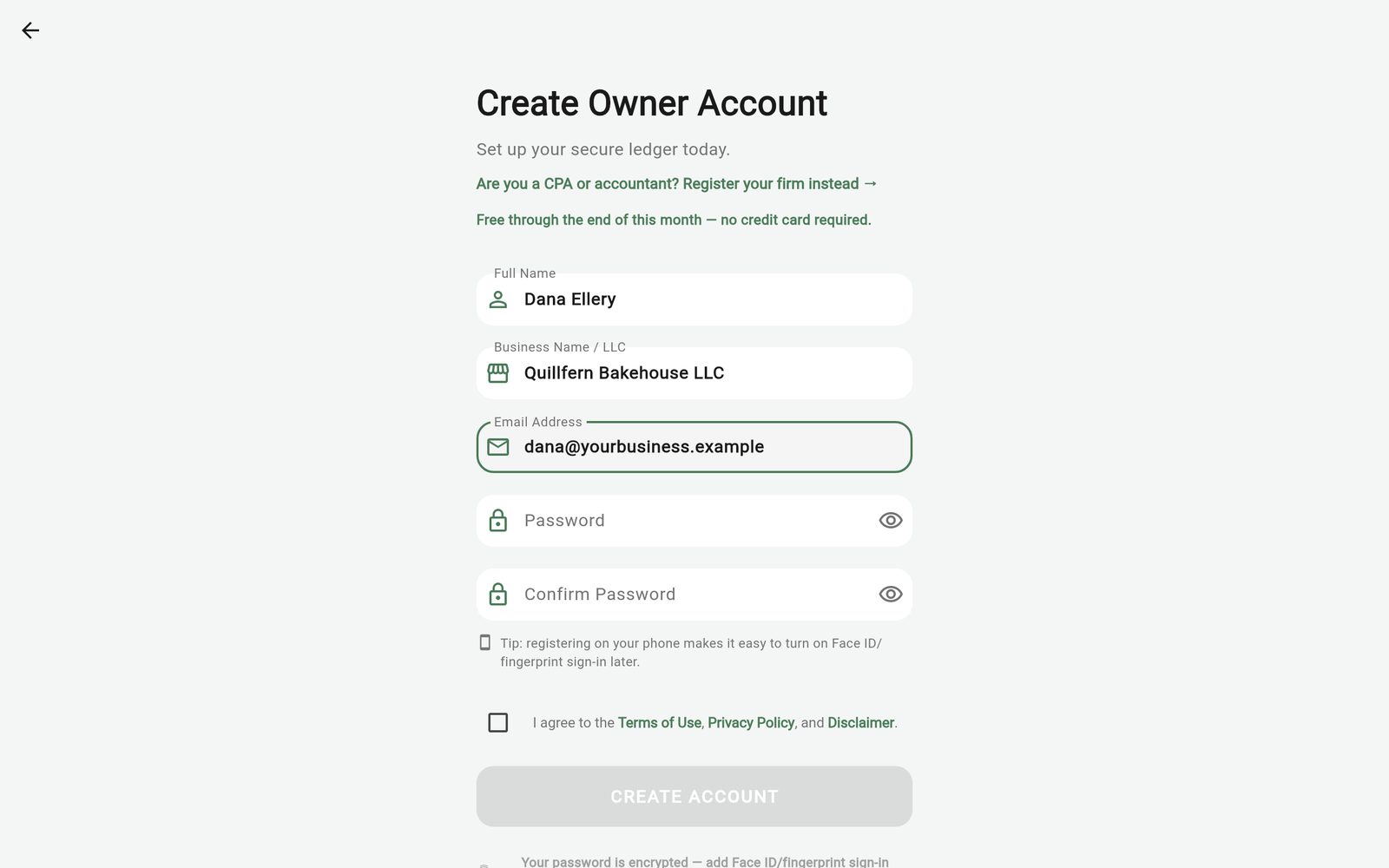
Sign up
Choose I'm a business owner. Your free trial runs through the end of the month you sign up in. No credit card needed.
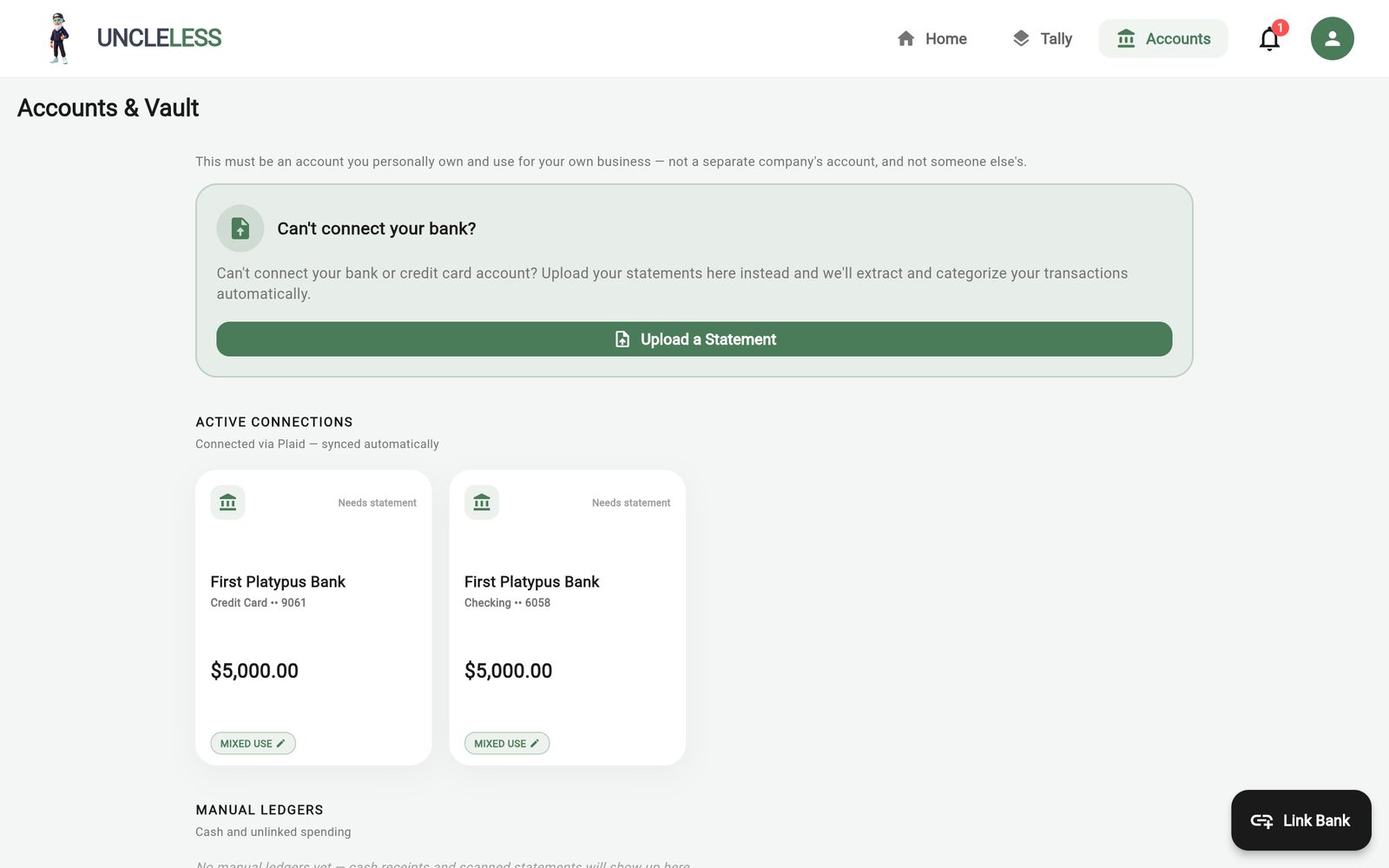
Link your accounts
Connect your business bank and card accounts (UncleLess asks for a Face ID or fingerprint check the first time). Mark each account Business Only, Mixed Use or Personal Only on the Accounts tab.
Automatic sorting
Most transactions are categorized as they post. Merchants you've confirmed a few times file themselves. A charge much larger than usual is always left for you to check.
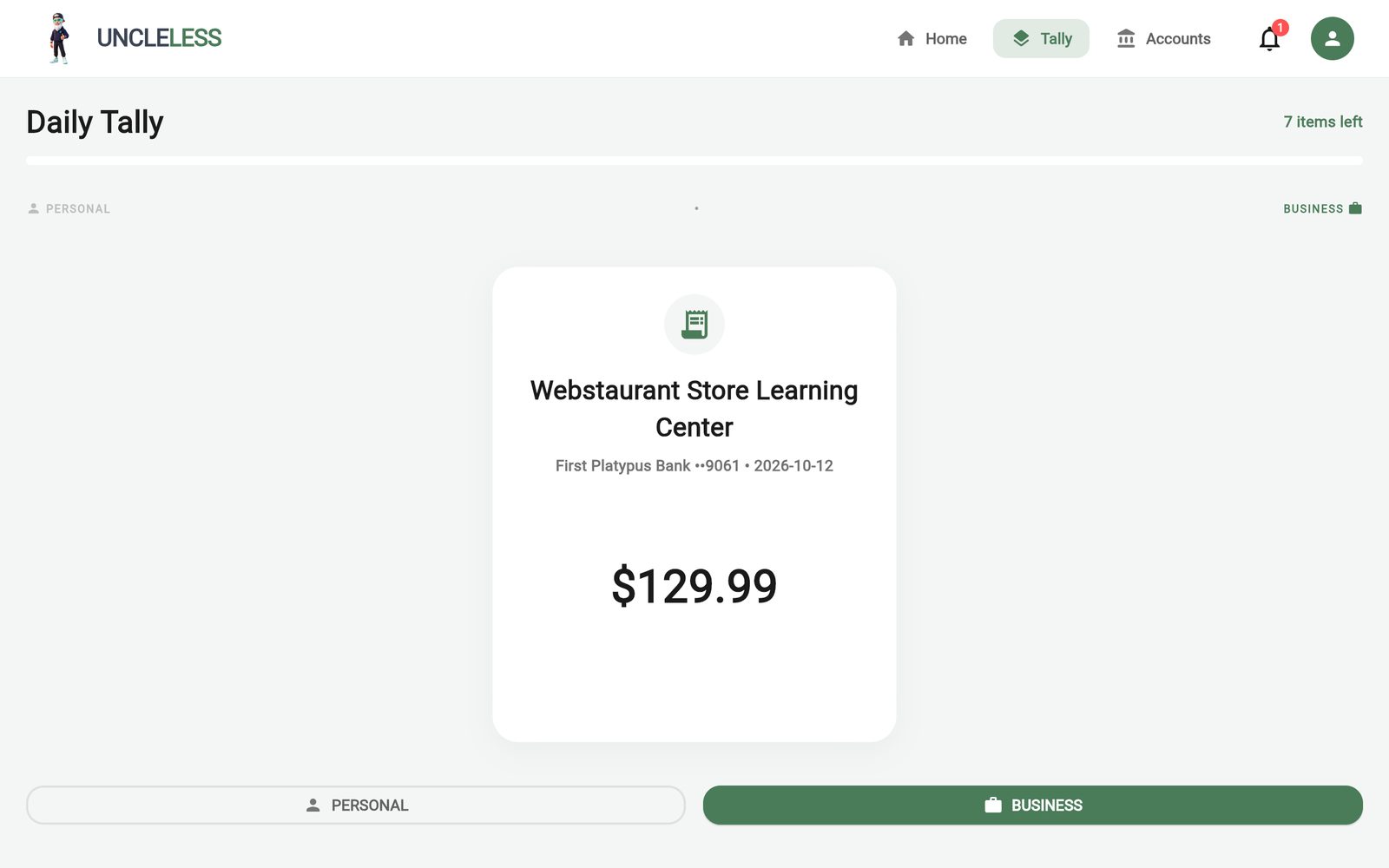
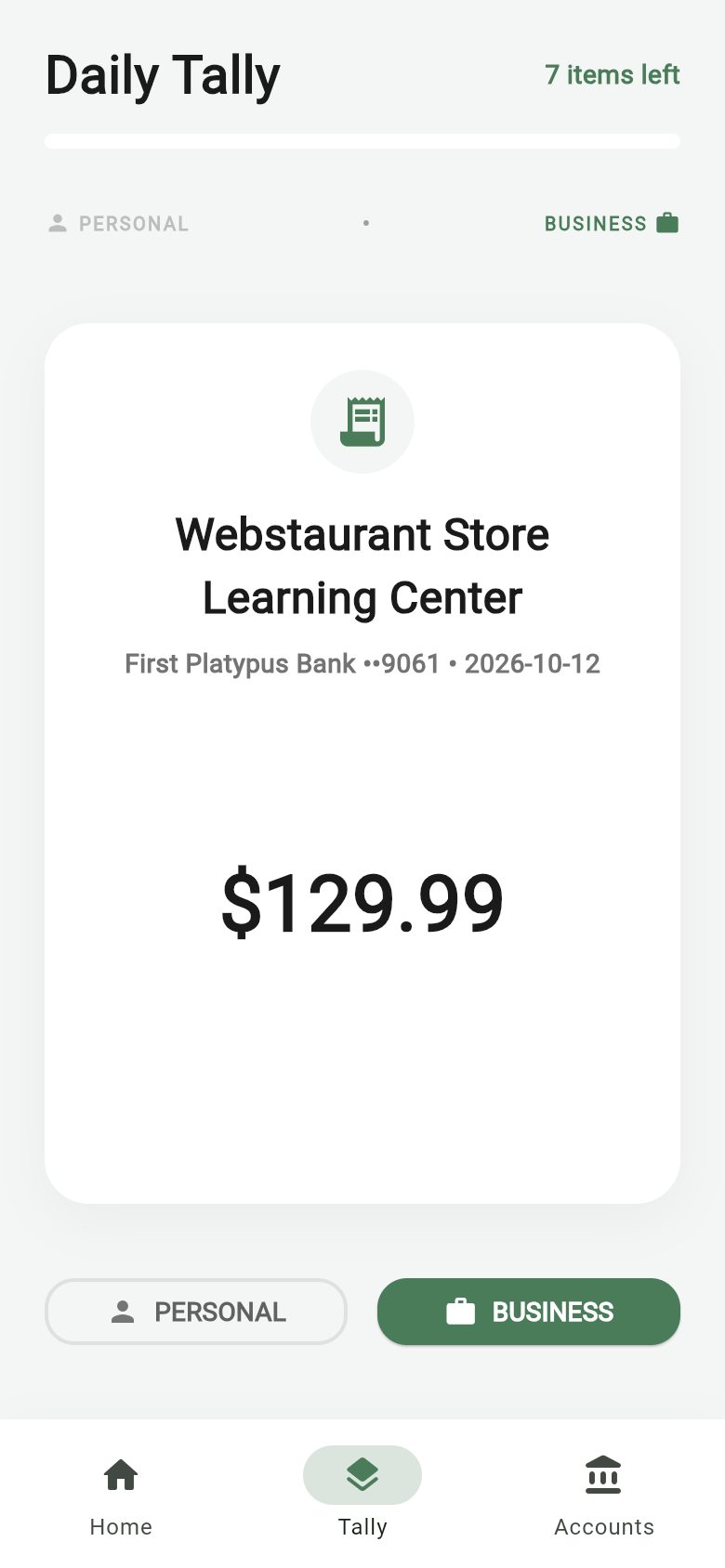
Daily Tally
The few transactions UncleLess isn't sure about wait in Daily Tally. Tap Business or Personal, then pick a category.
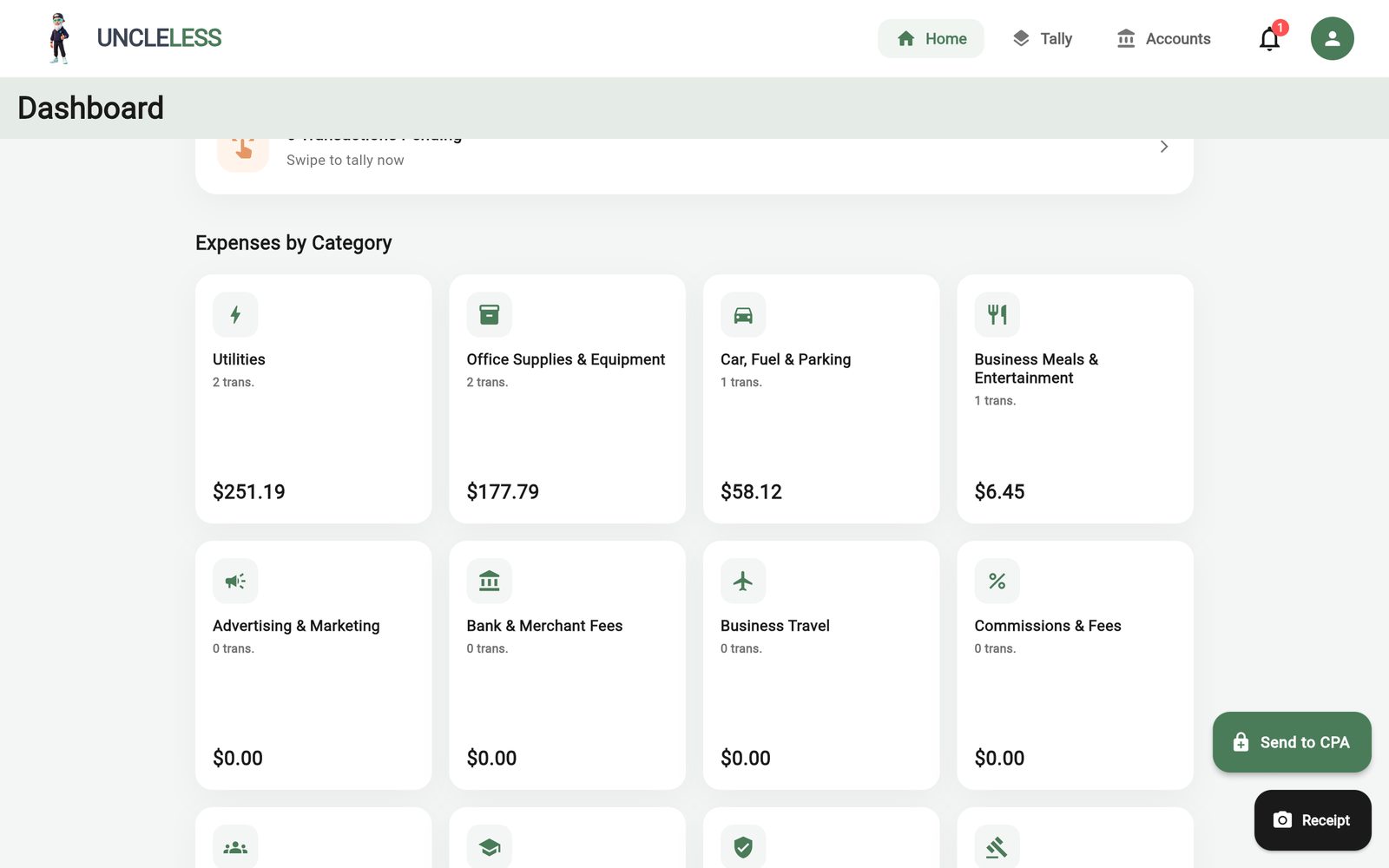
Your dashboard
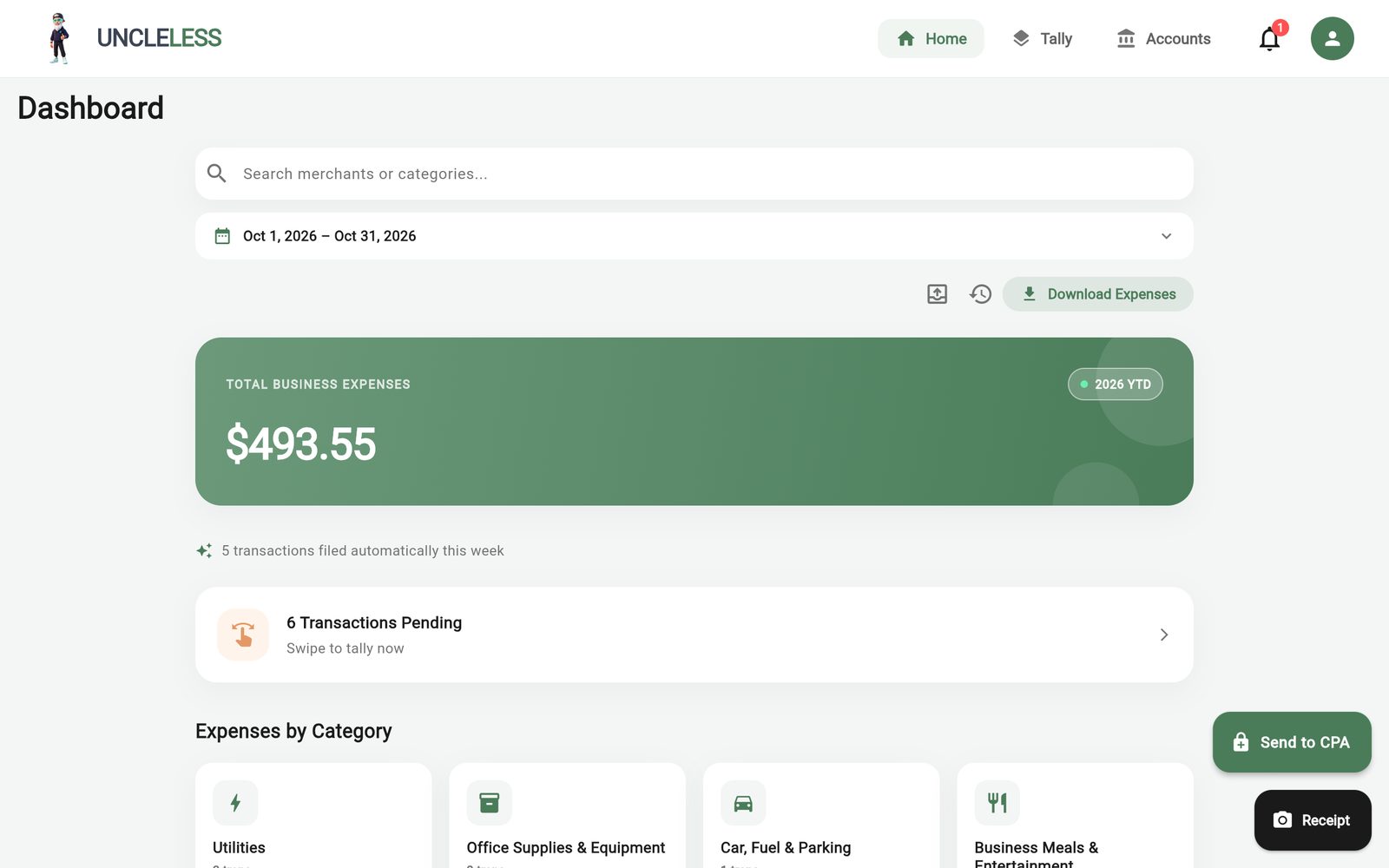
See business spending by category, and Sales, Deposits & Other Money In, for any date range.
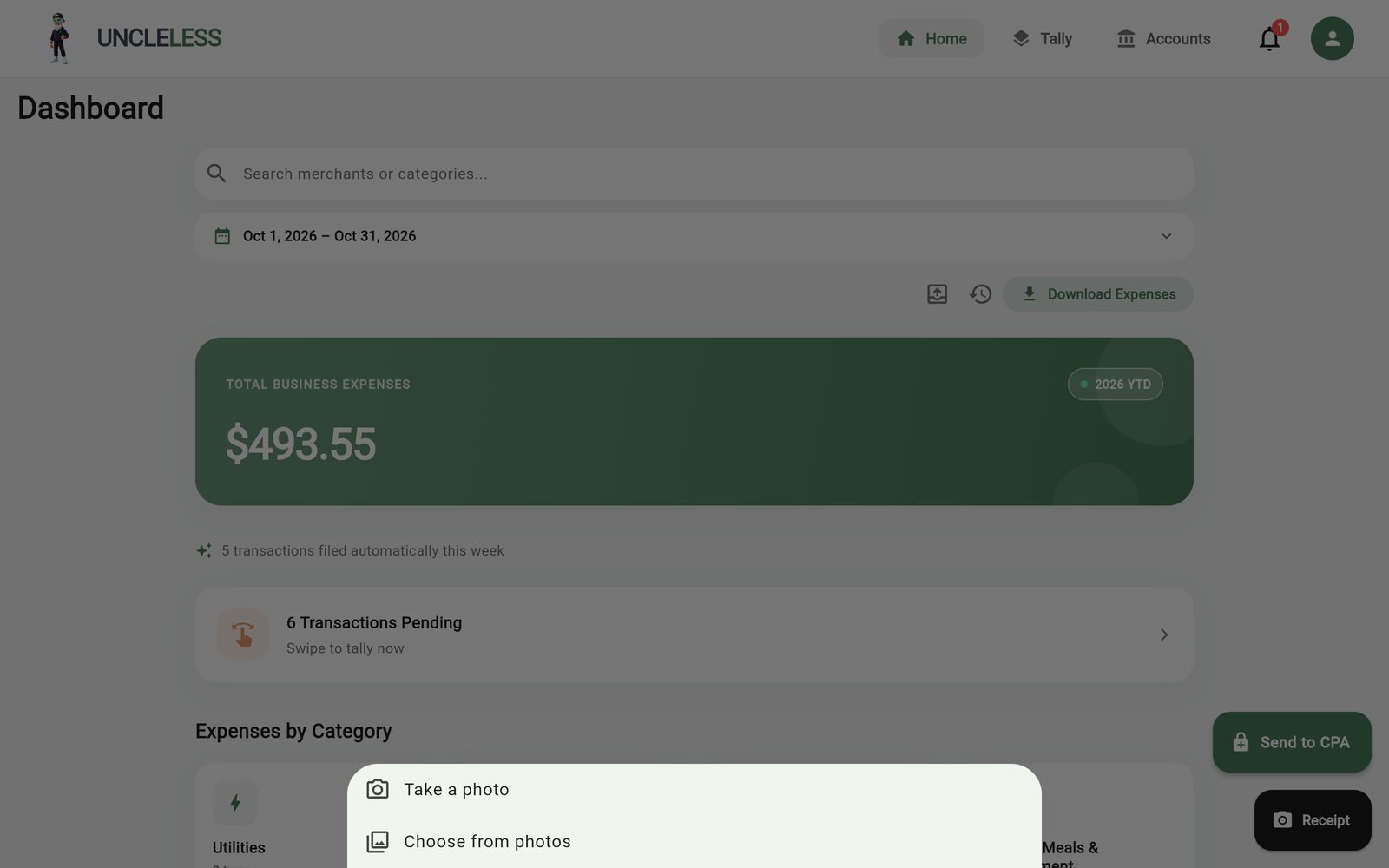
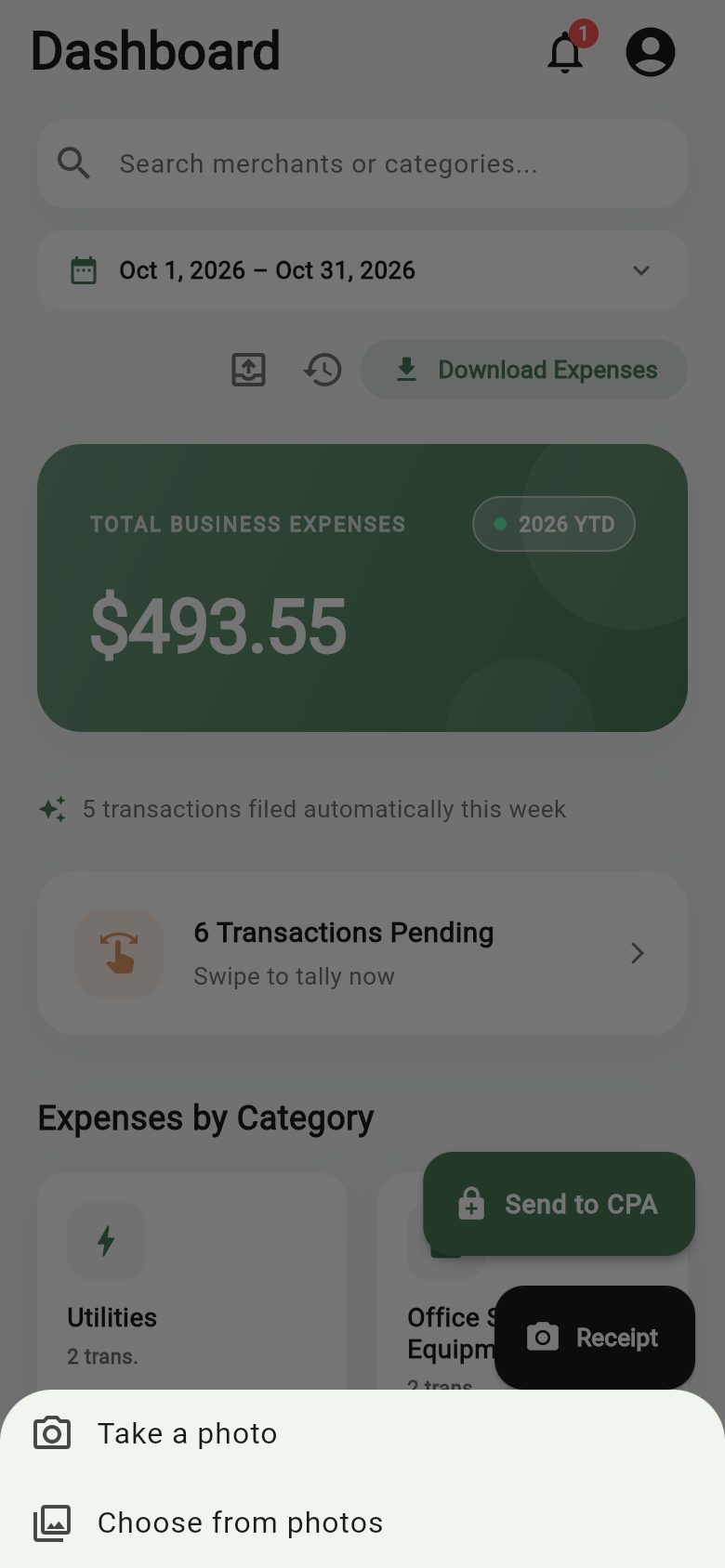
Receipts
Tap Receipt, then Take a photo or Choose from photos. The receipt is matched to its transaction.
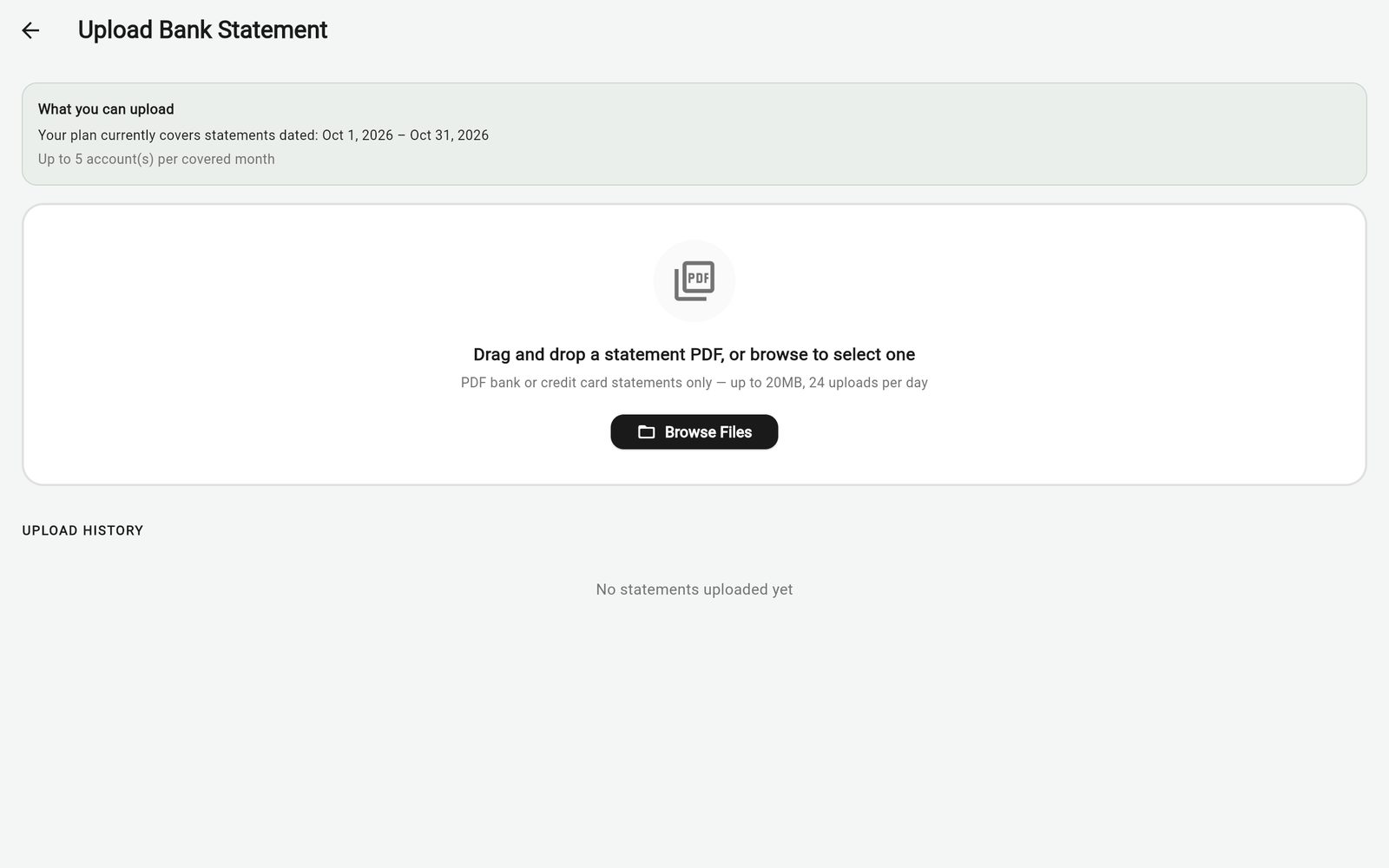
No bank connection? Upload a statement
Use Upload a Statement on the Accounts tab. PDF statements are read and sorted the same way; tell UncleLess whether it's a checking/savings or a credit card statement.
Invite your CPA
Open Send to CPA and type your CPA's email, or scan your CPA's invite with I have an invite from my CPA. Your CPA uses UncleLess free.
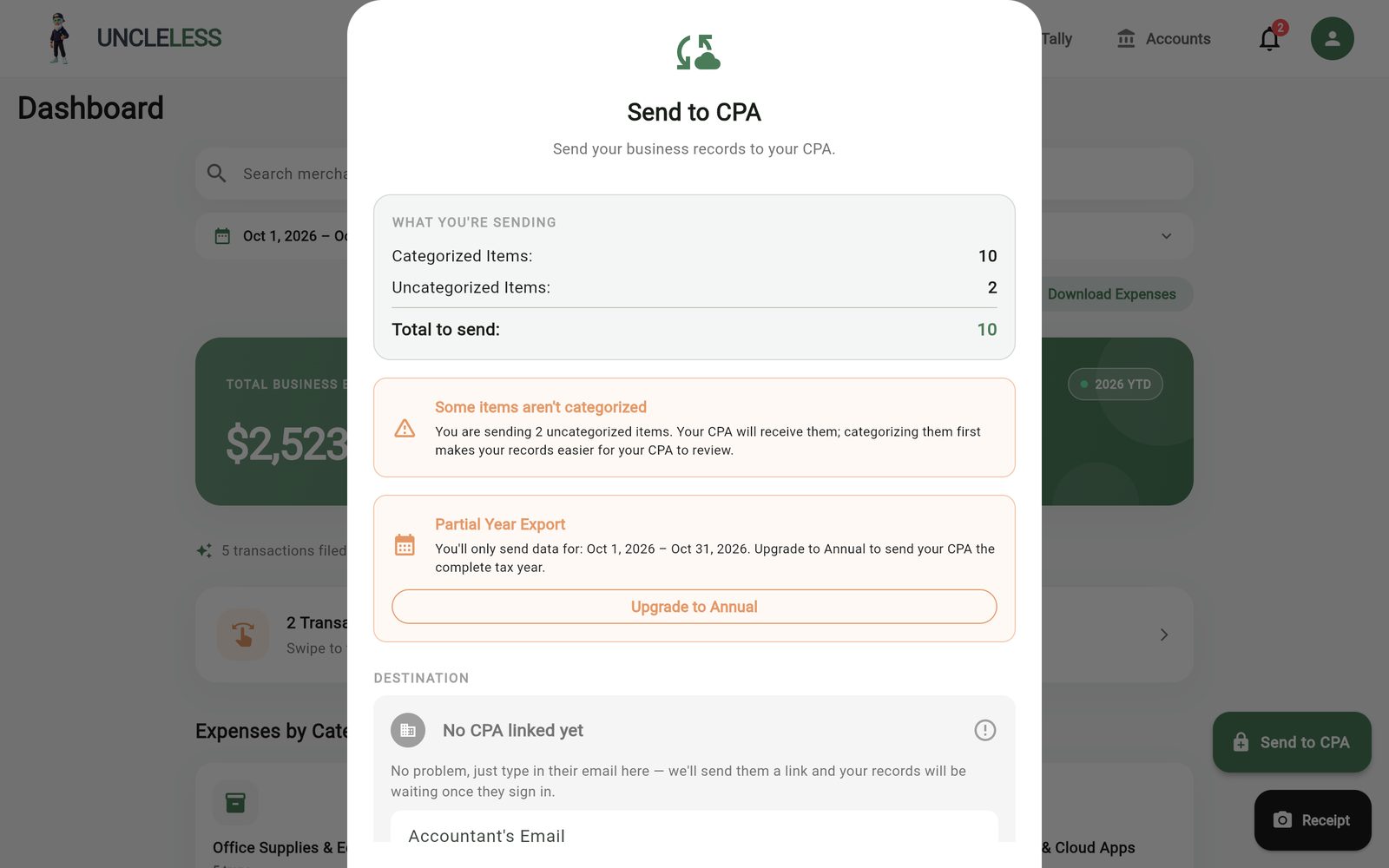
Send to your CPA
Send to CPA shows what's new or changed since your last send, then sends your business-tagged records. Personal and unconfirmed transactions are never sent.
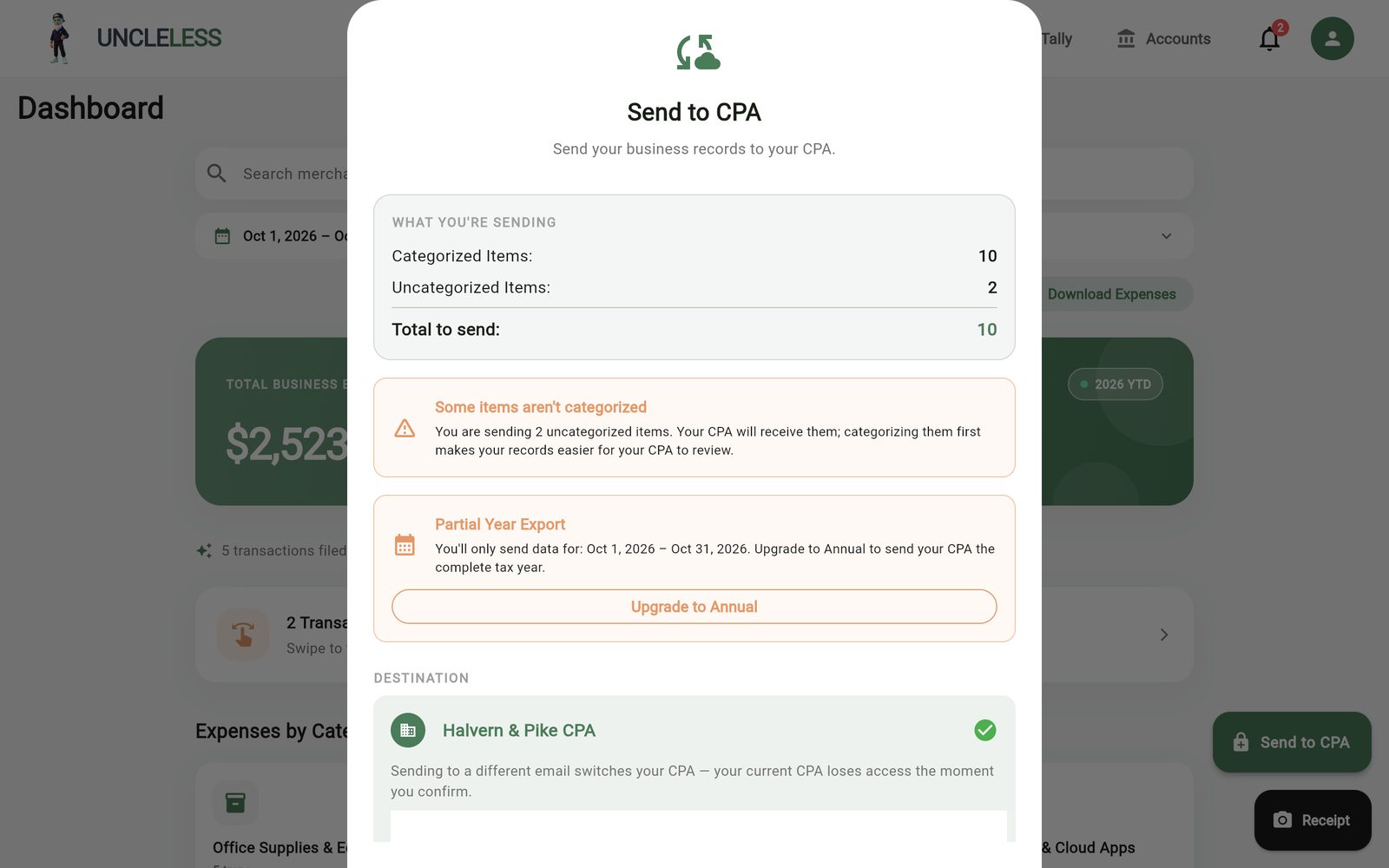
Sent to CPA
Every send is saved. Open Sent to CPA to see each send and exactly what was in it, grouped by category.
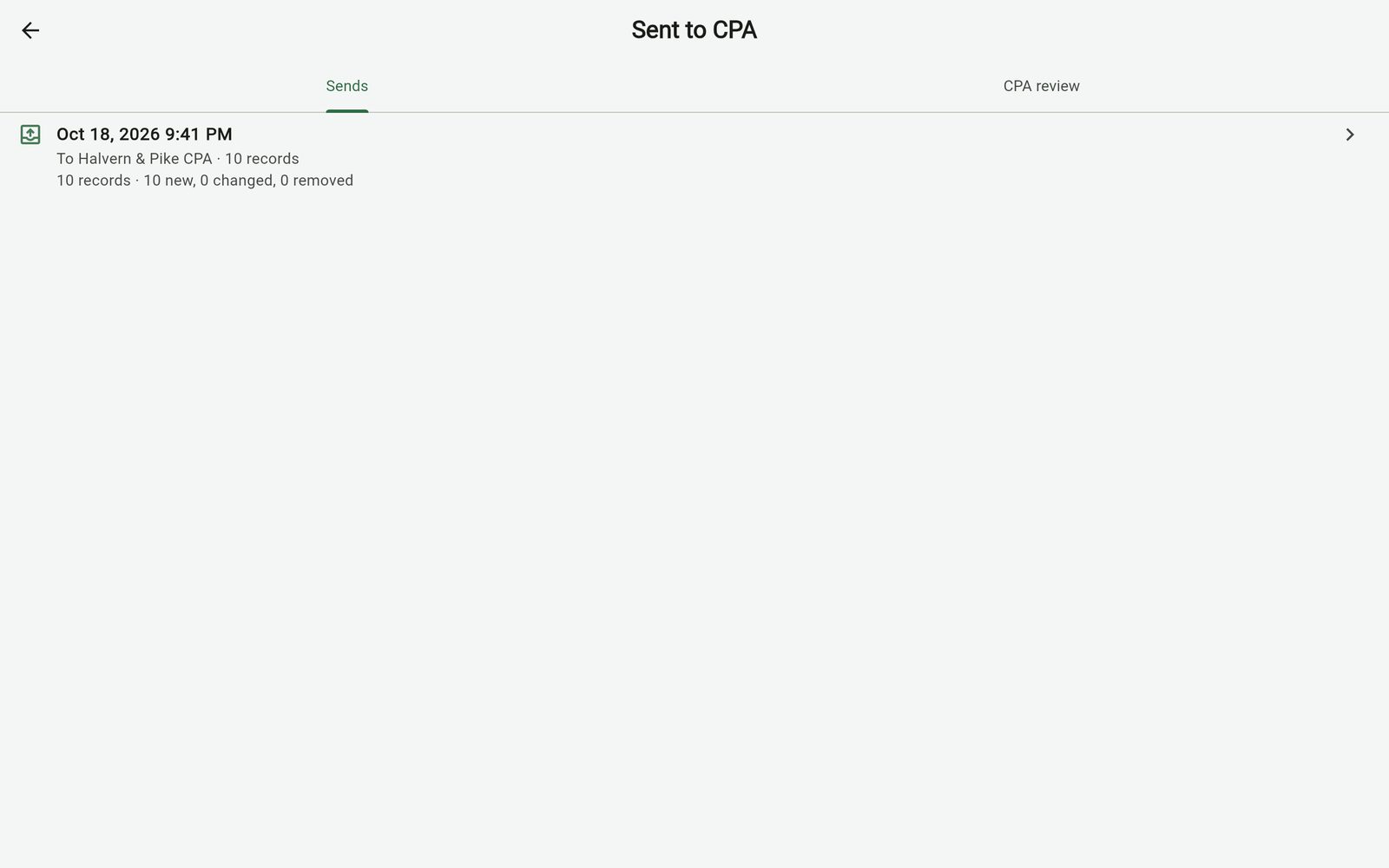
When your CPA reviews
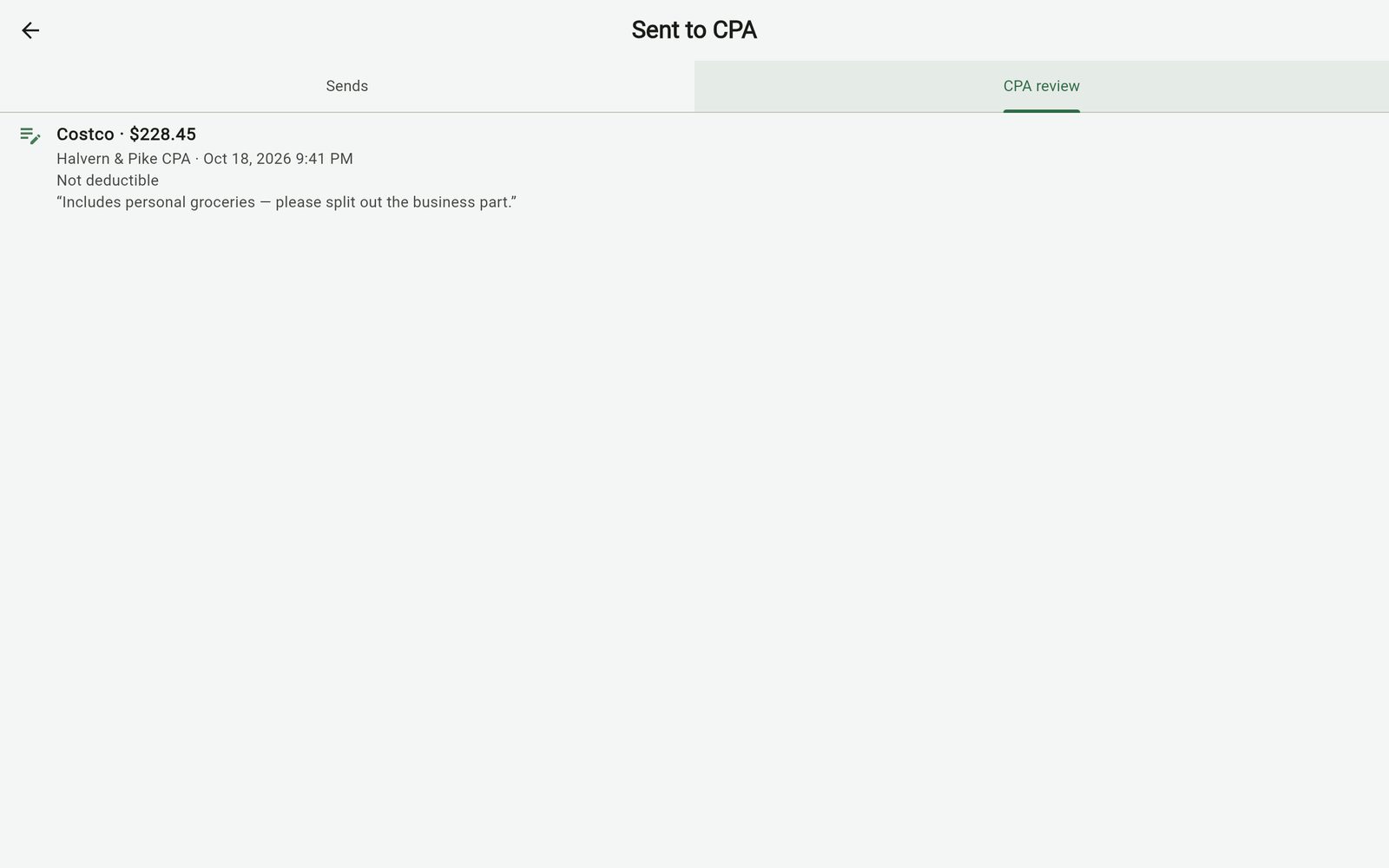
If your CPA adjusts something you sent, you get a notification. See their changes and notes under Sent to CPA → CPA review. Your own records stay exactly as you left them.
Your profile and plan
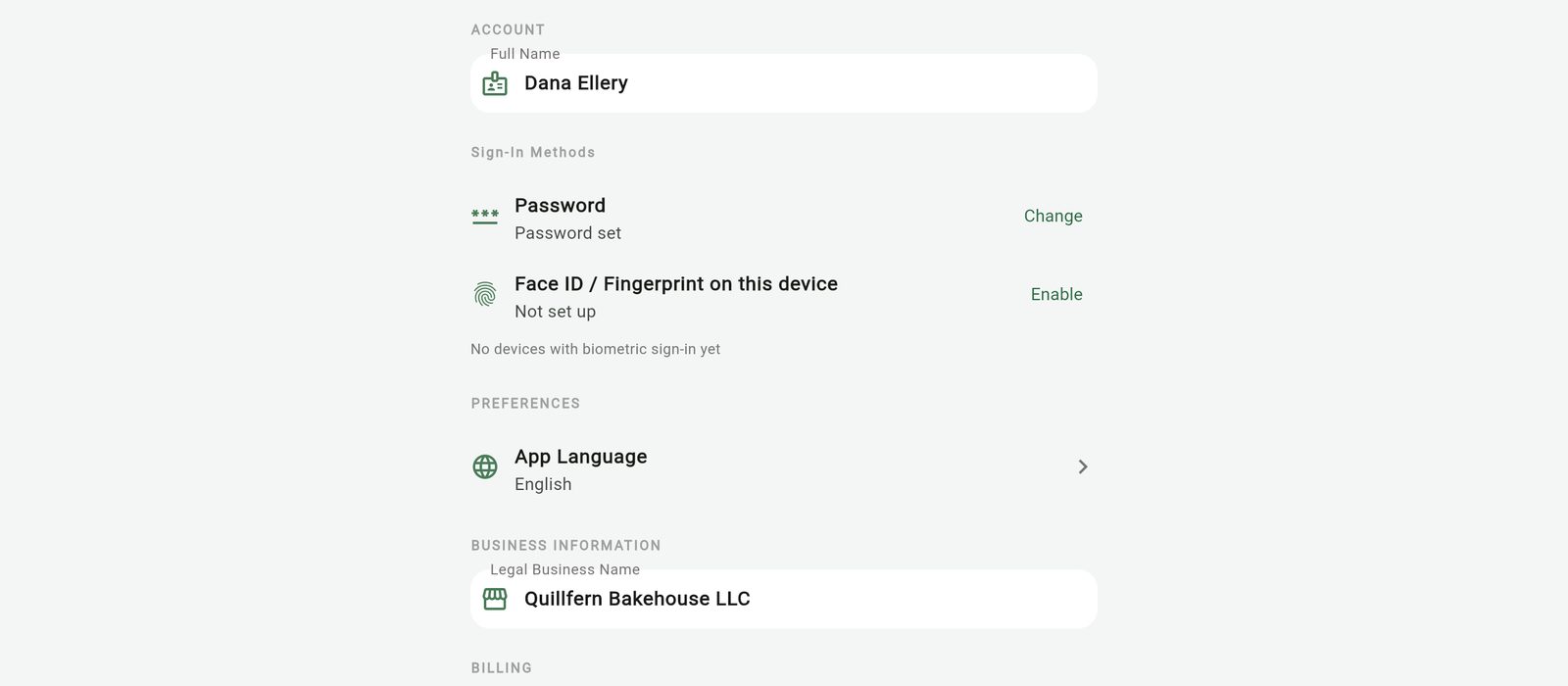
Your Profile holds your subscription, app language, sign-in devices and account settings.
For CPAs & accountants
From registering your firm to the Schedule C Workbook.
Register your firm
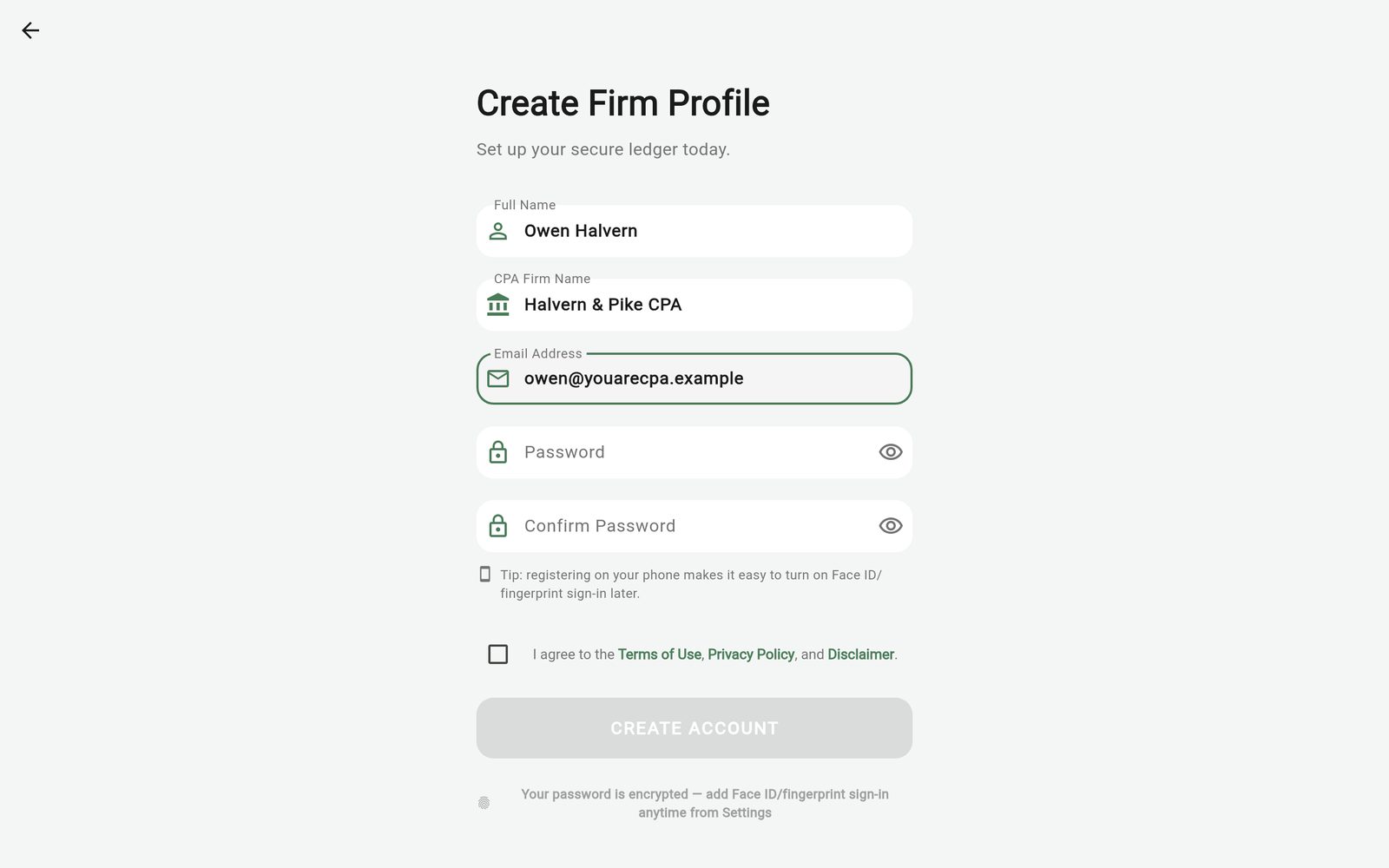
Choose I'm a CPA or accountant. For security, every sign-in is verified.
Bring clients in
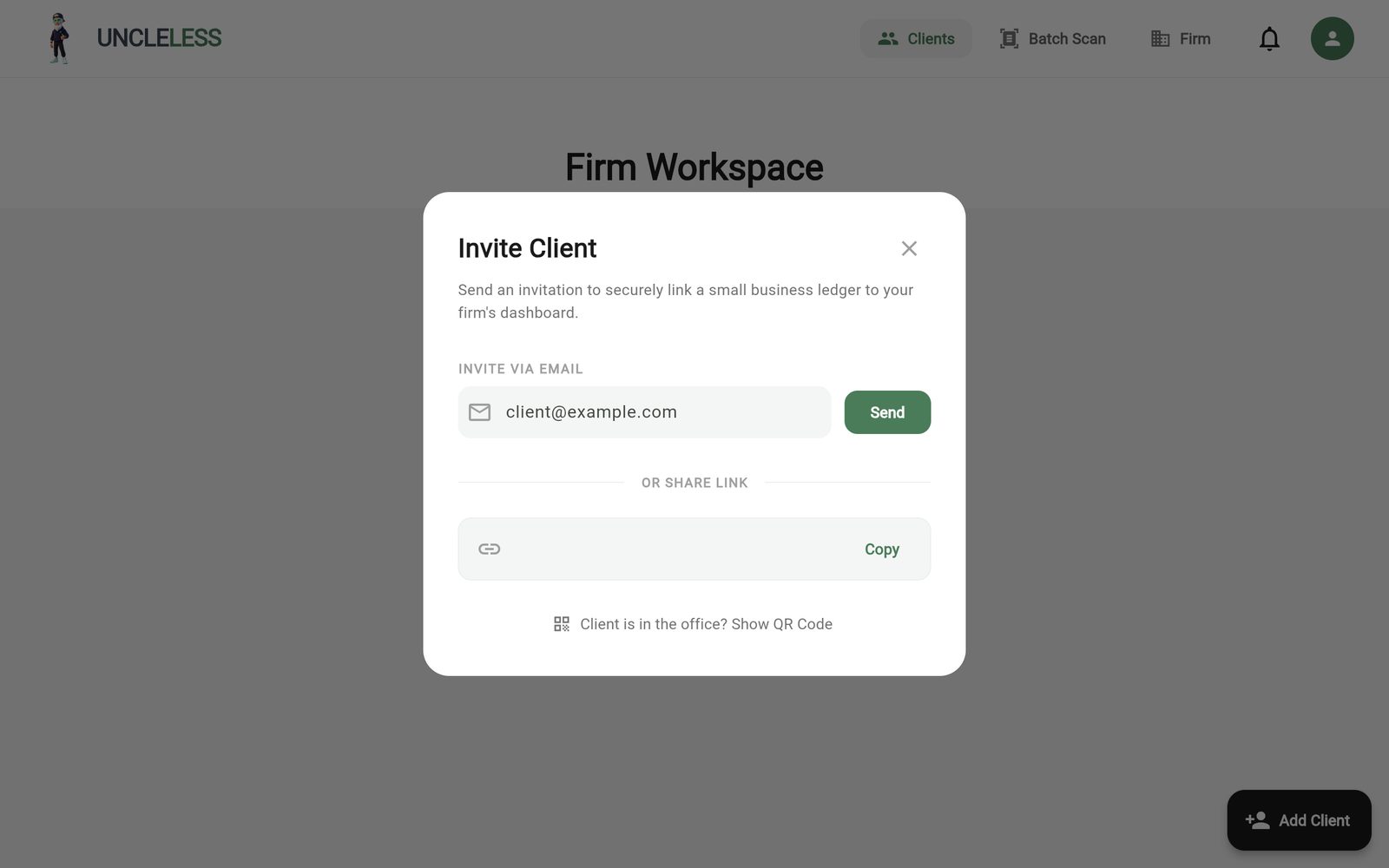
Tap Add Client for an invite link or QR code. Clients can invite you too.
Your Clients tab
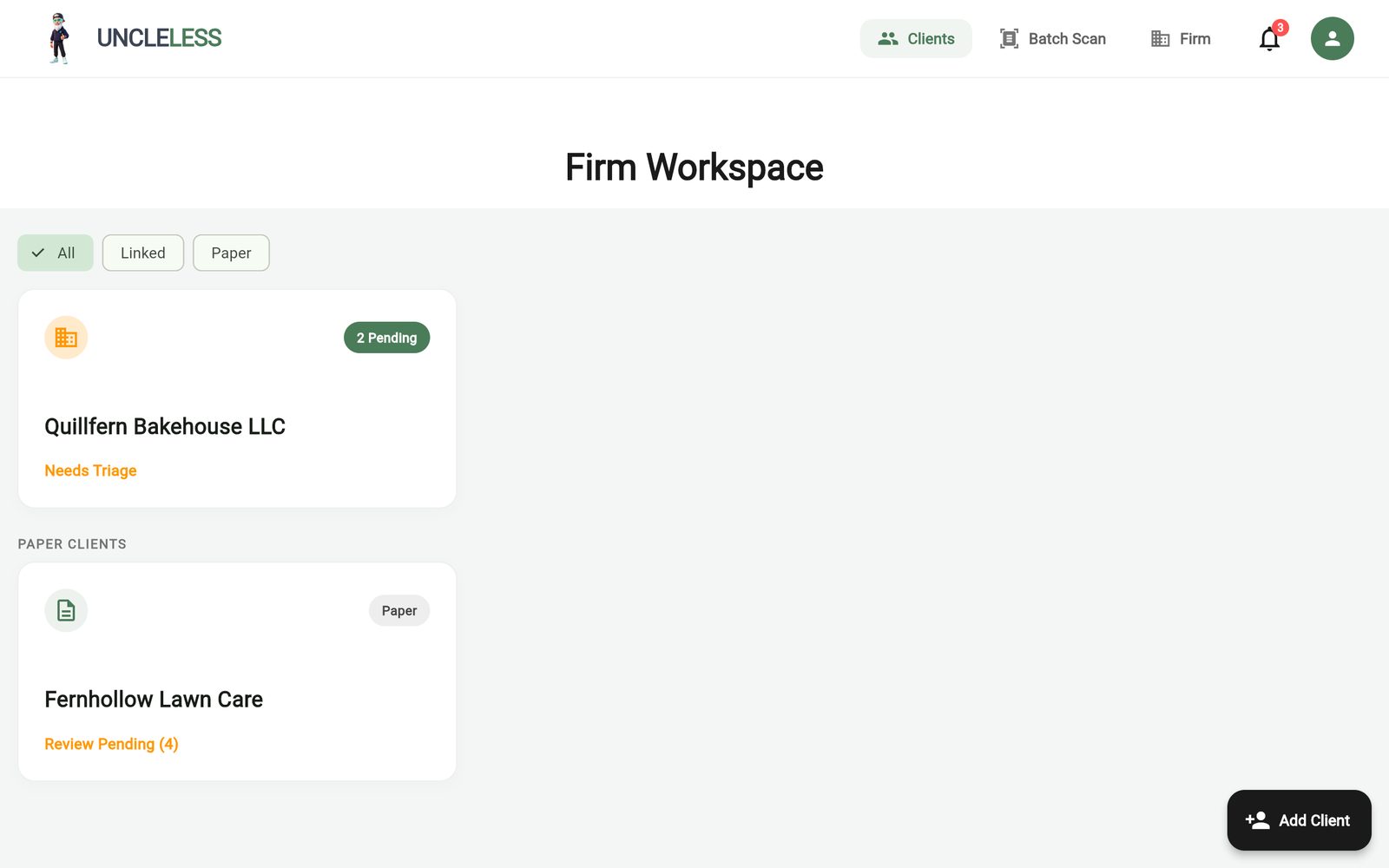
Linked and paper clients appear as cards marked Up to date or Review Pending. Filter by All, Linked or Paper.
A client's ledger
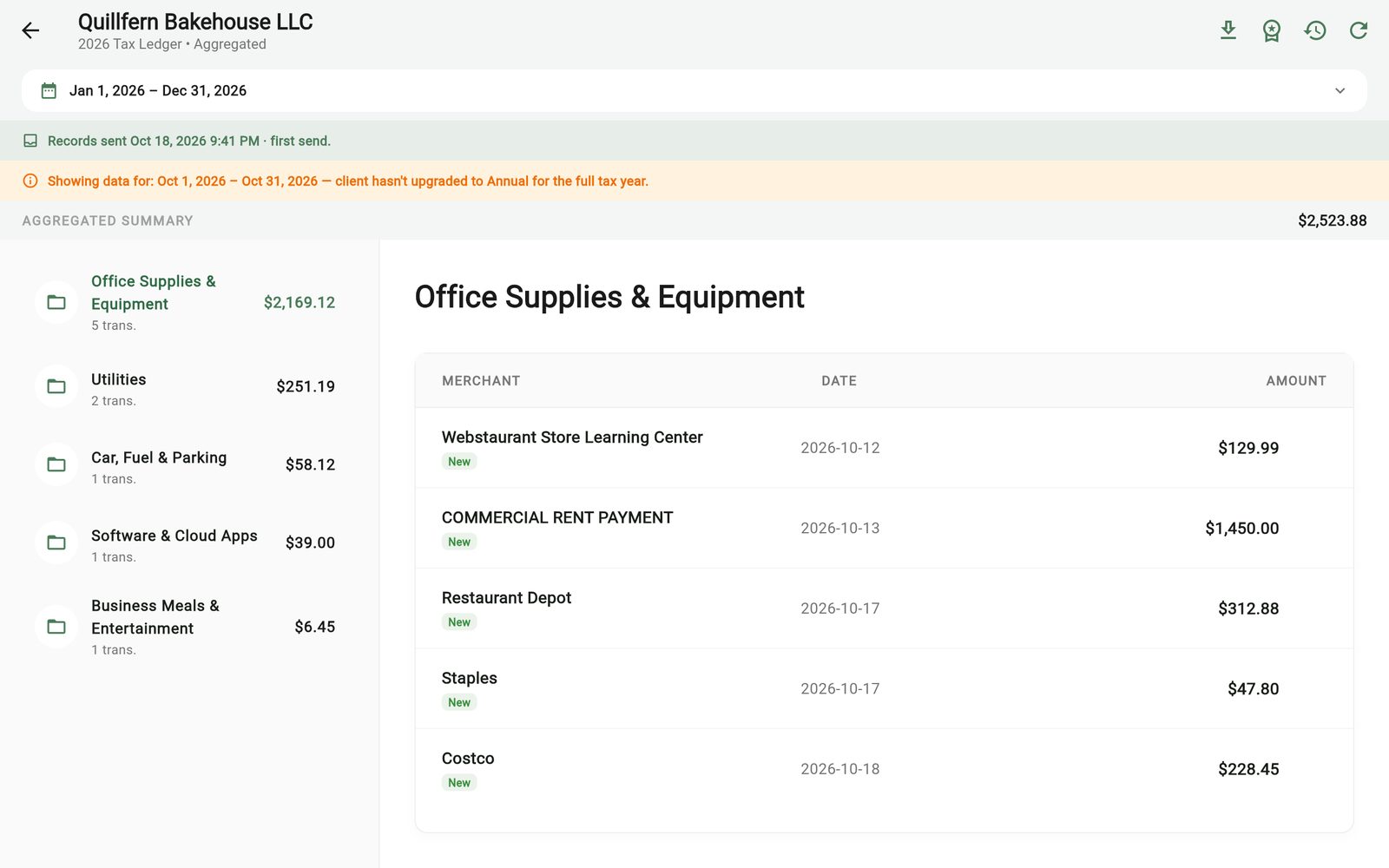
What the client sent you, by category, for any date range. New and Changed markers show what's different since their last send; receipts are one click away.
Adjust a line (CPA plan)
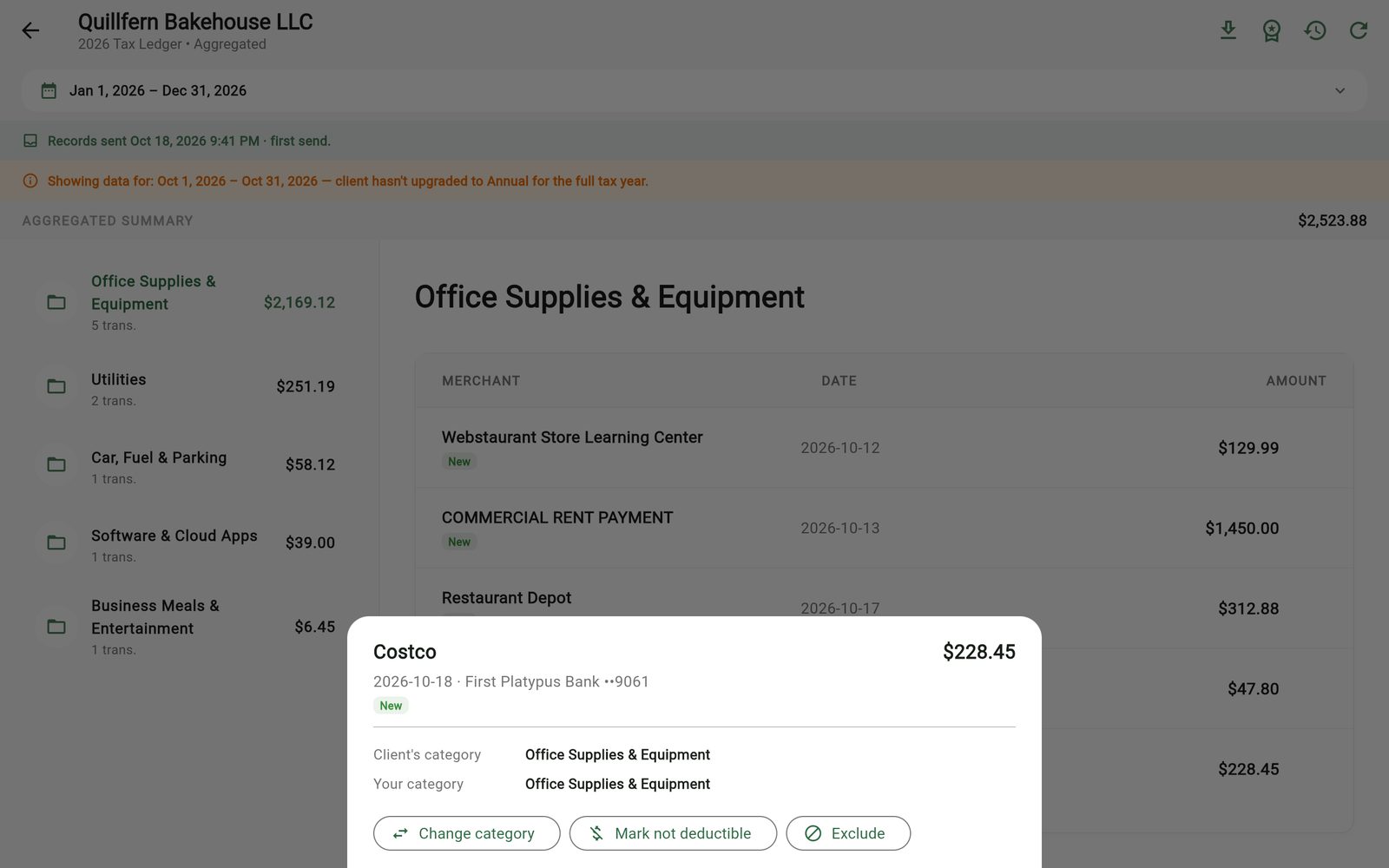
Tap a line to Change category, Mark not deductible or Exclude it, each with a note. Undo any time. The client is notified, and their own records are untouched.
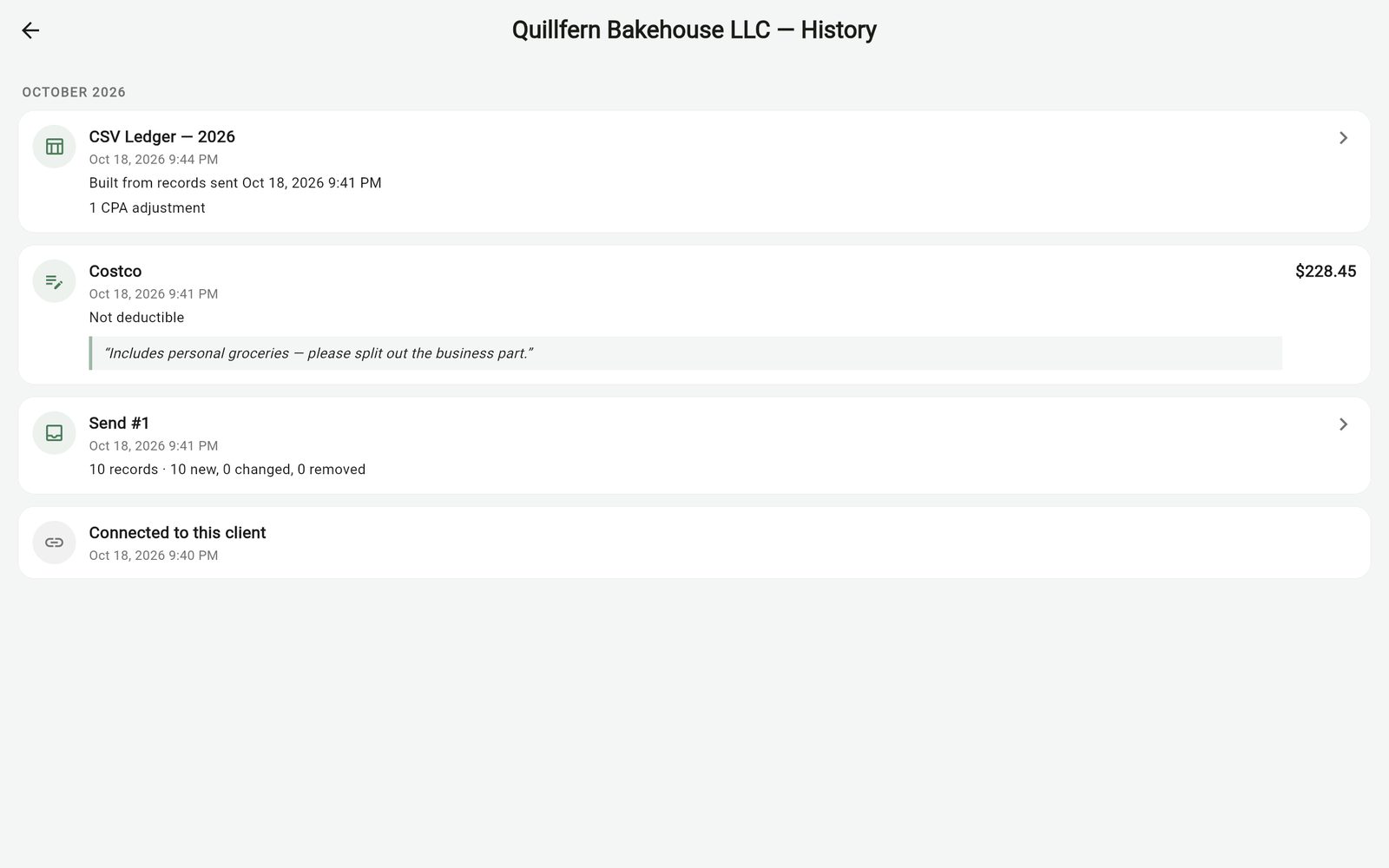
History
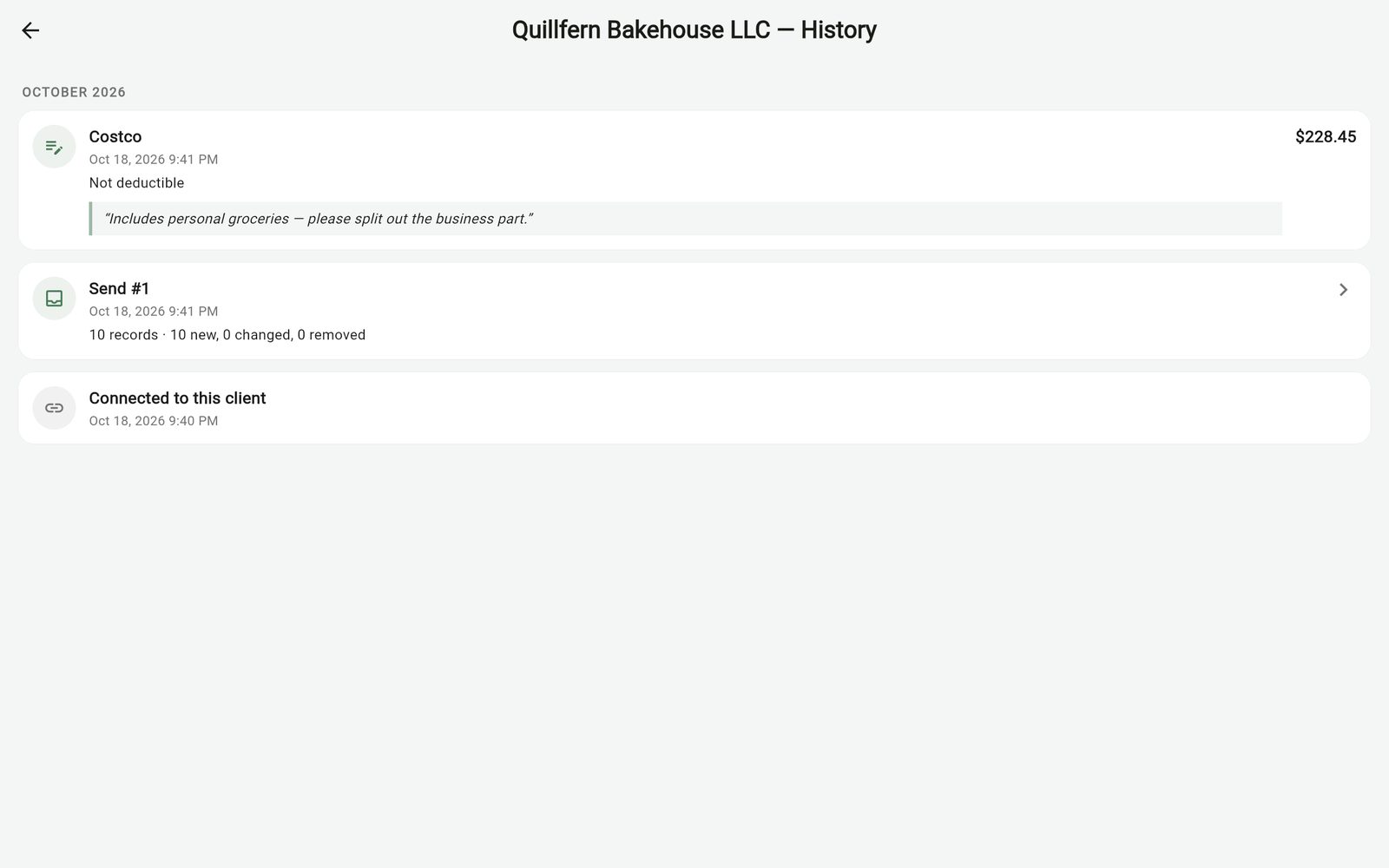
Every send, report and adjustment for the client, by month.
Paper clients (CPA plan)
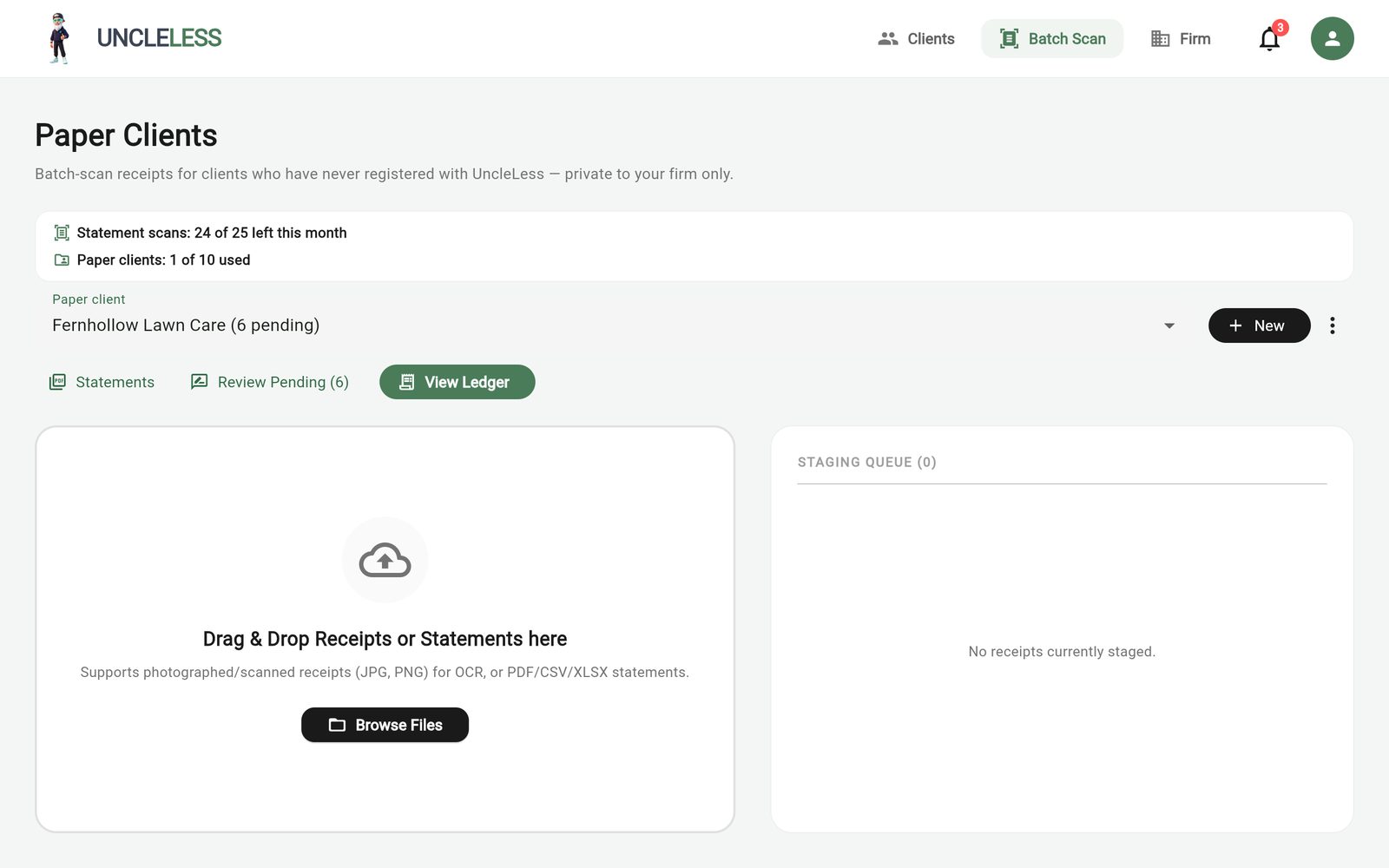
Batch Scan is home for clients who don't use UncleLess. The top shows statement scans left and paper clients used. Create a client, upload statements, then use Statements, Review Pending and View Ledger.
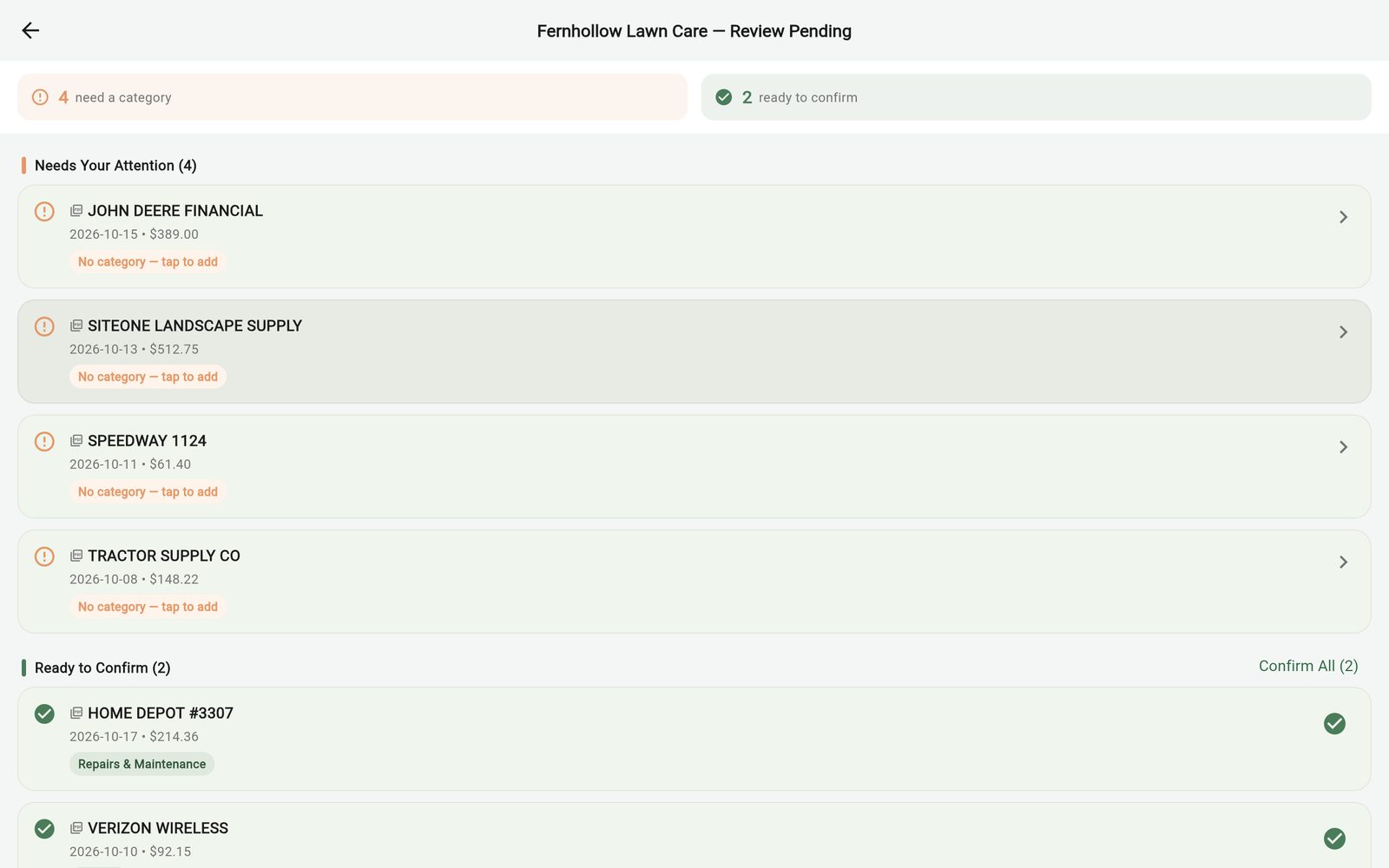
Review scanned lines
Confirm pre-categorized lines in one click. Pick a category for the rest once, and UncleLess remembers it.
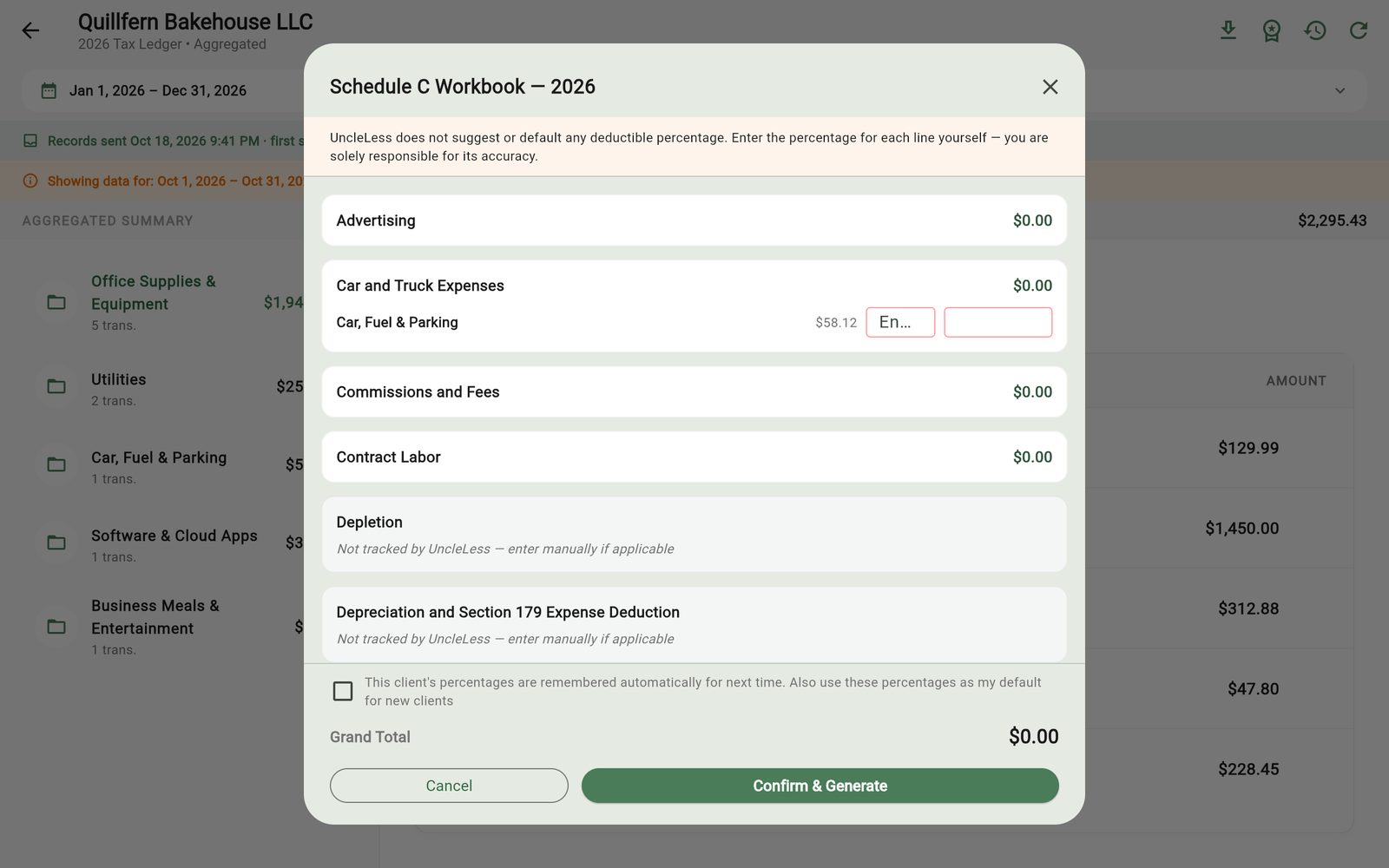
Schedule C Workbook (CPA plan)
Totals mapped to Schedule C lines with your chart of accounts. You enter every percentage. Download an Excel workbook and a PDF.
Downloads and report history
Download any client's ledger any time, free. Every report is kept with the send it was built from.
UncleLess helps you keep your records organized. Your CPA prepares and files; nothing in UncleLess is tax advice. Questions? See the FAQ or contact us.